In this article, I’ll walk you through how to build your first Android app based on the official Android Developers documentation.
This guide follows the tutorial below:
https://developer.android.com/codelabs/basic-android-kotlin-compose-first-app?hl=en
Before you begun to develop your Android App
First, Install Android Studio on your computer before you begun to develop your Android App.
Install Android Studio on your computer if you haven’t done so already. […] If you need more detailed instructions on the setup process, refer to the Download and install Android Studio codelab.
To install Android Studio, Access to the link below:
https://developer.android.com/studio?hl=en
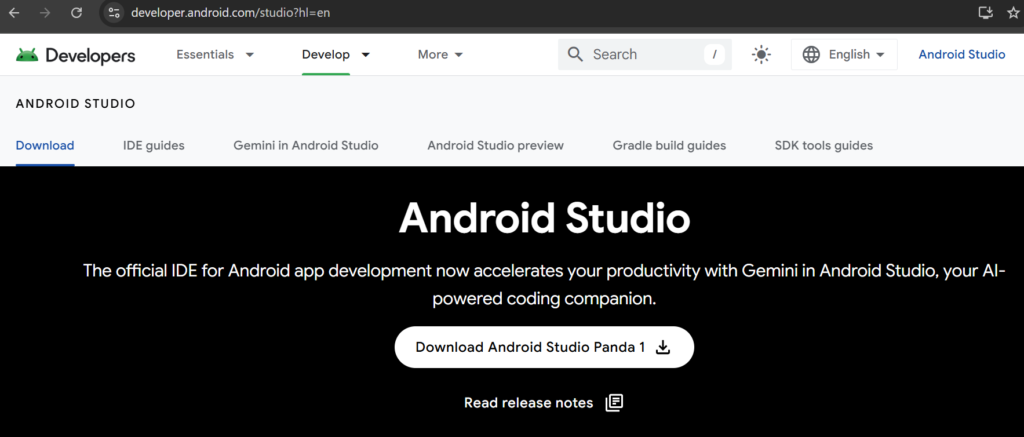
Click “Download Android Studio” Button to download Android Studio.
After the Windows has been displayed, check the box and click download button.
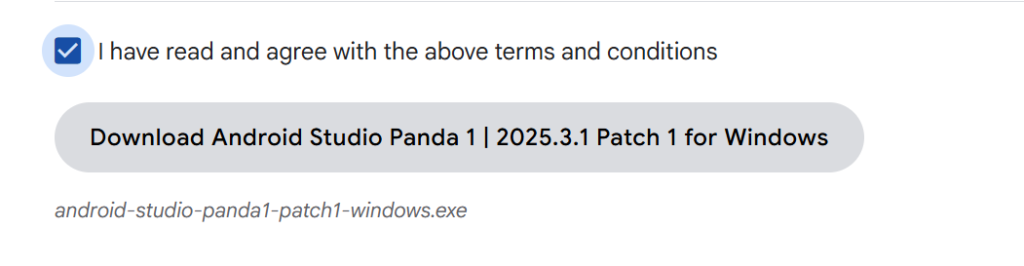
Install Android Studio from Installer you downloaded.
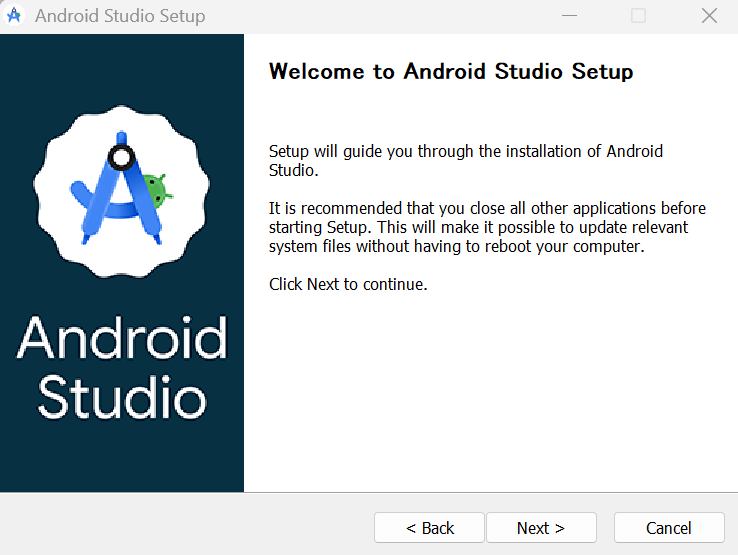
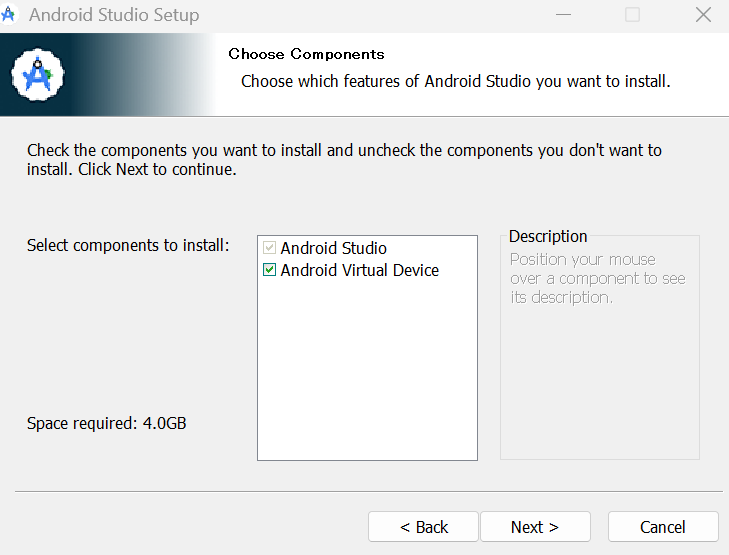
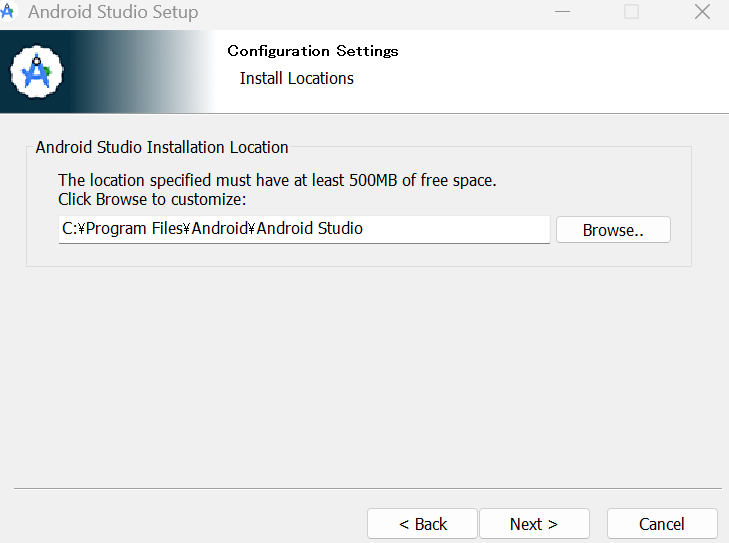
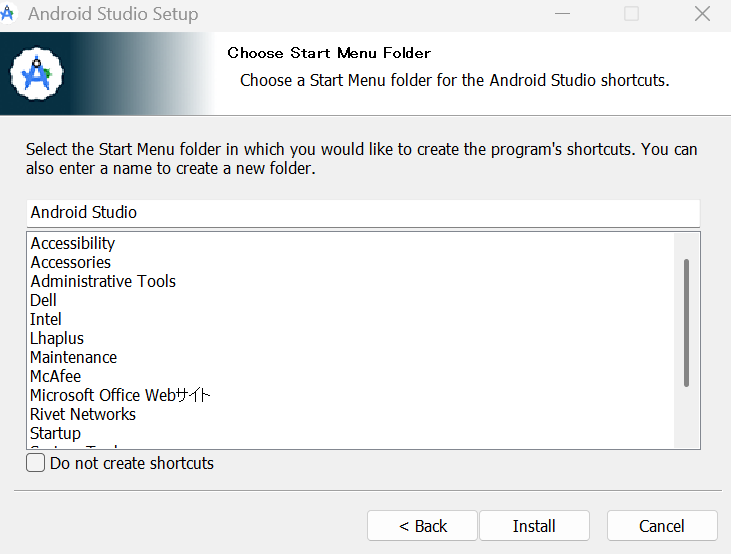
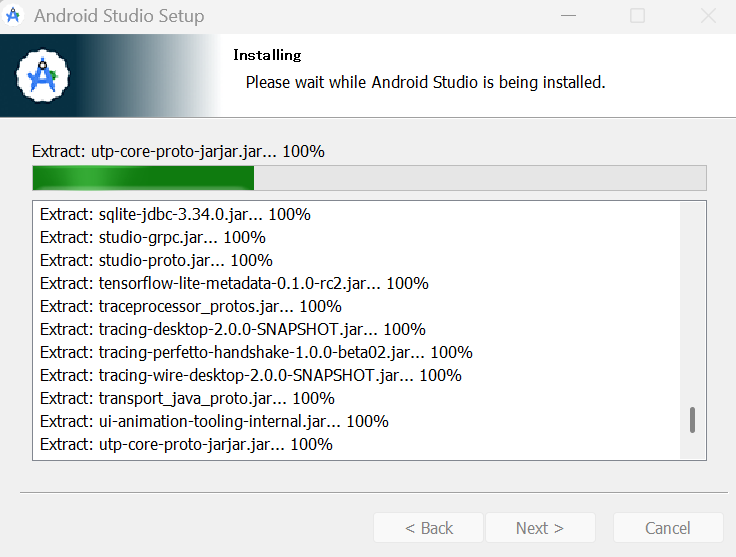
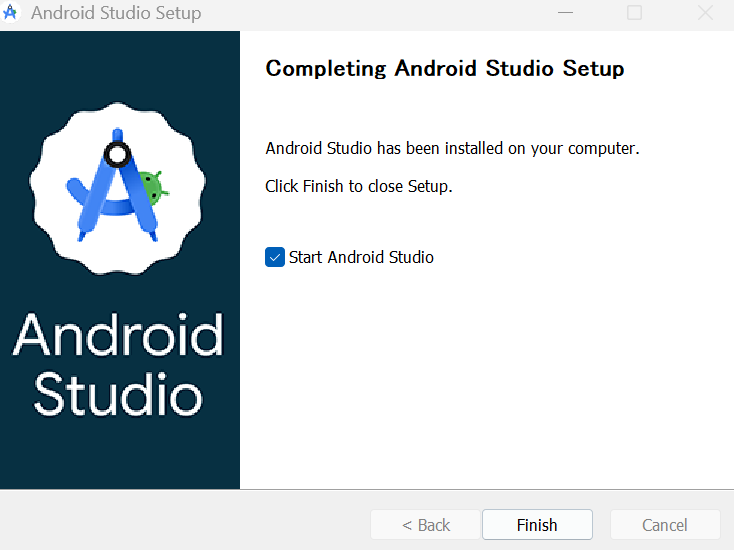
After Install Android Studio, Start Android Studio.
Setup Android Studio.

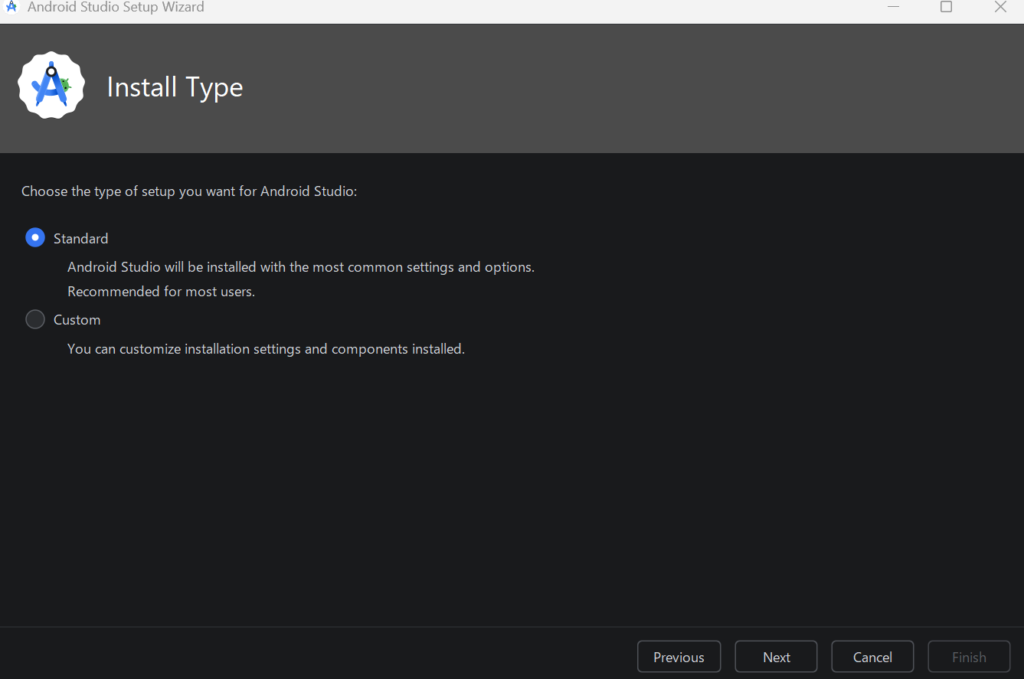
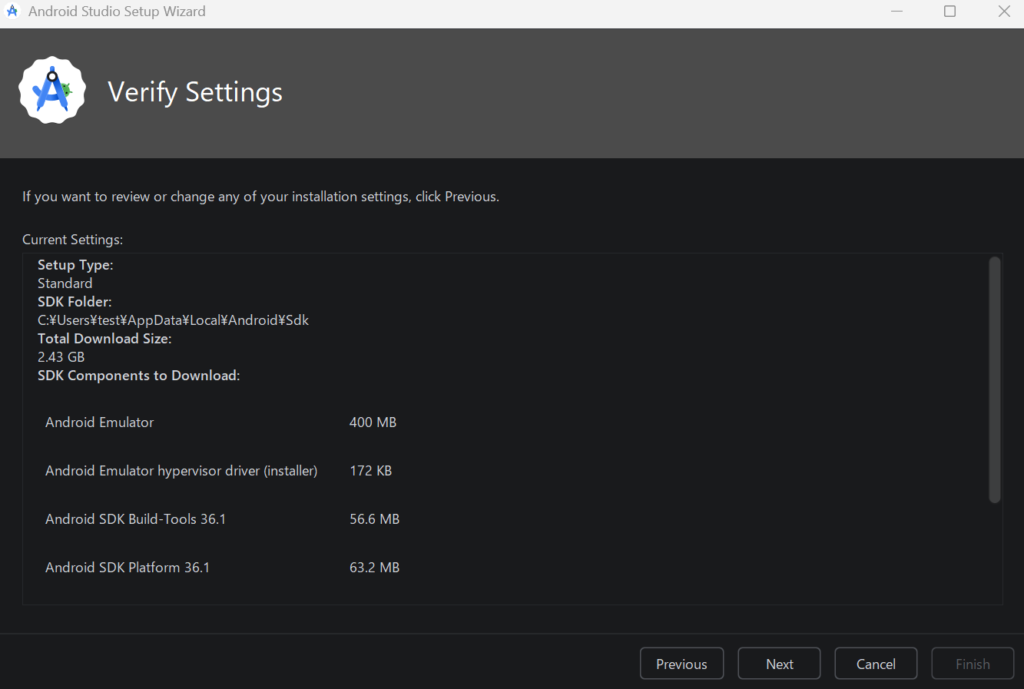
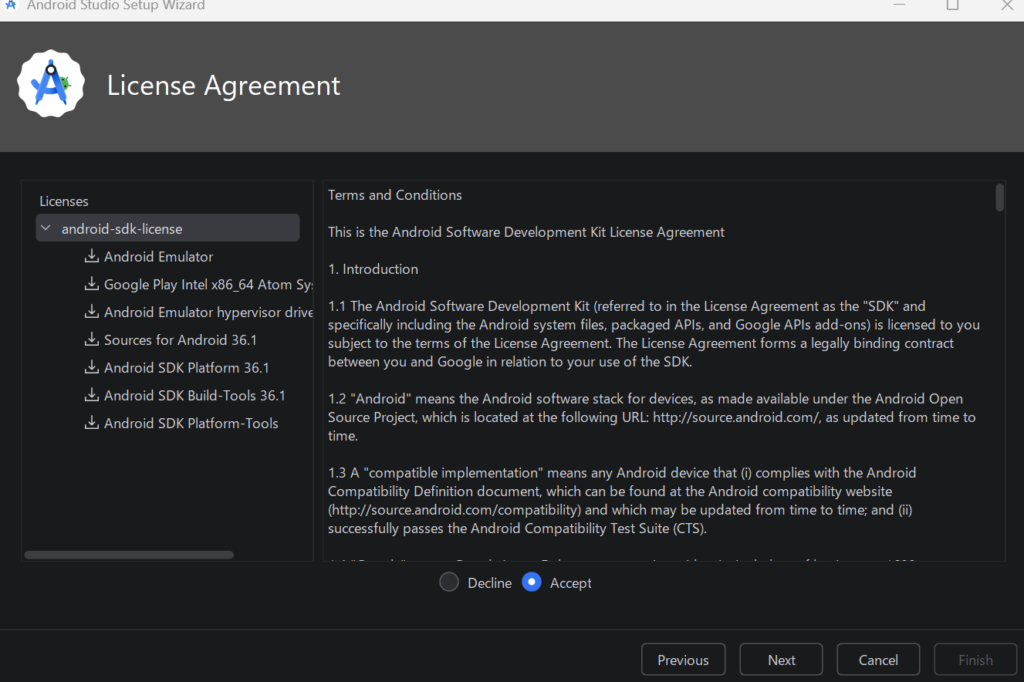
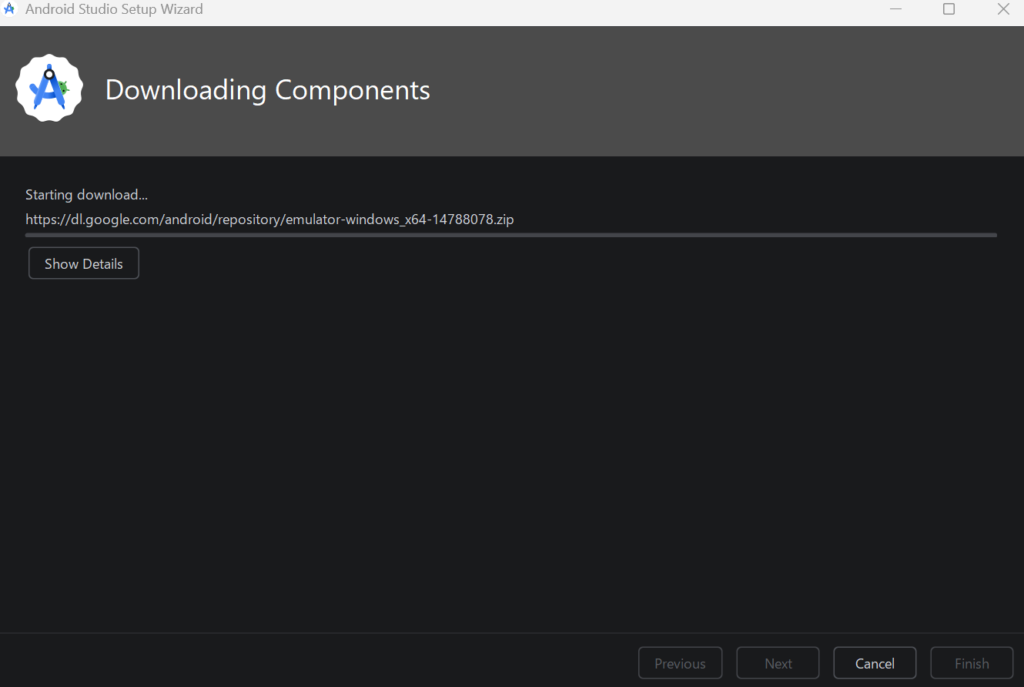
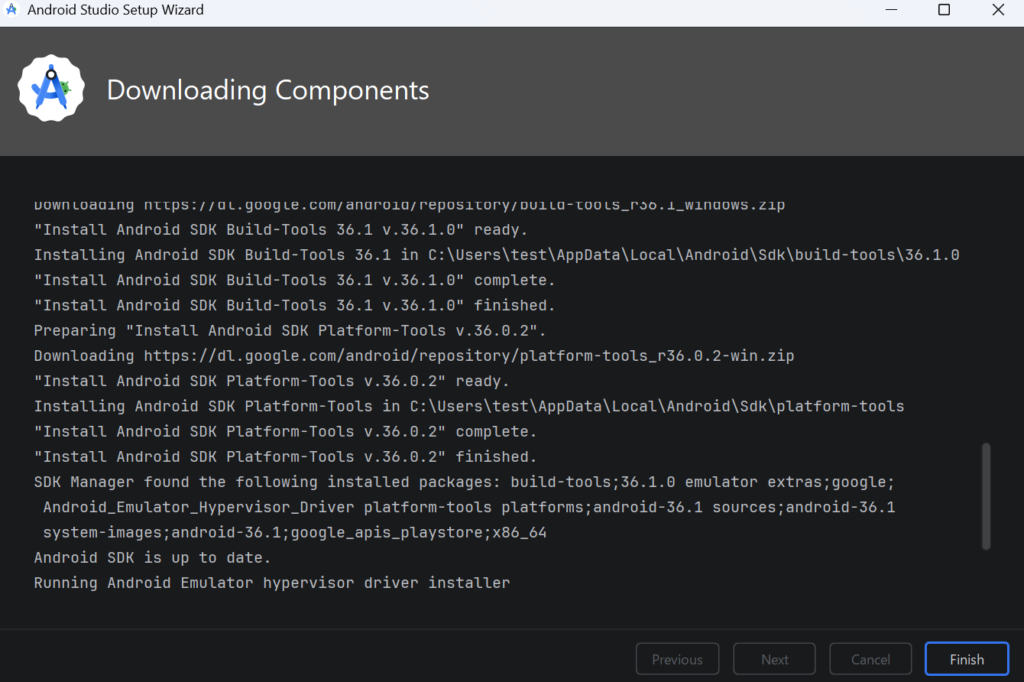
After finished to setup, create a project on android studio.
Create a project on Android Studio
After setup Android Studio, create a project on android studio.
https://developer.android.com/codelabs/basic-android-kotlin-compose-first-app?hl=en#1
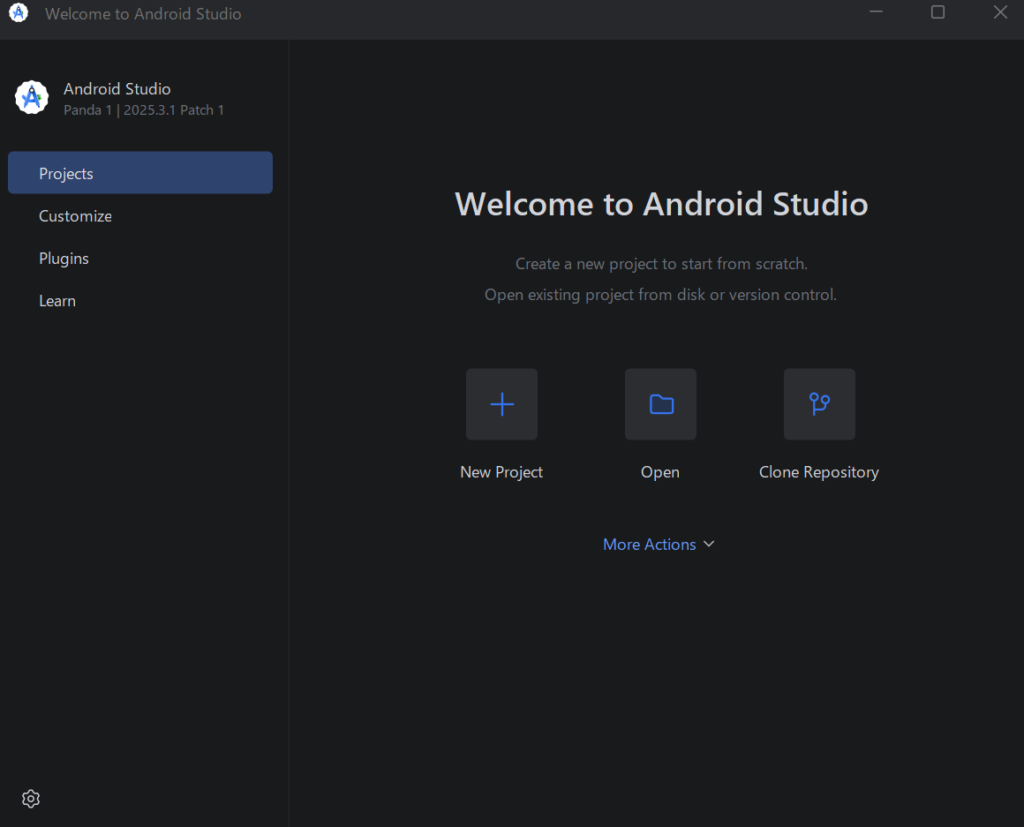
Click “New Project”.

Click Empty Activity and Next Button.
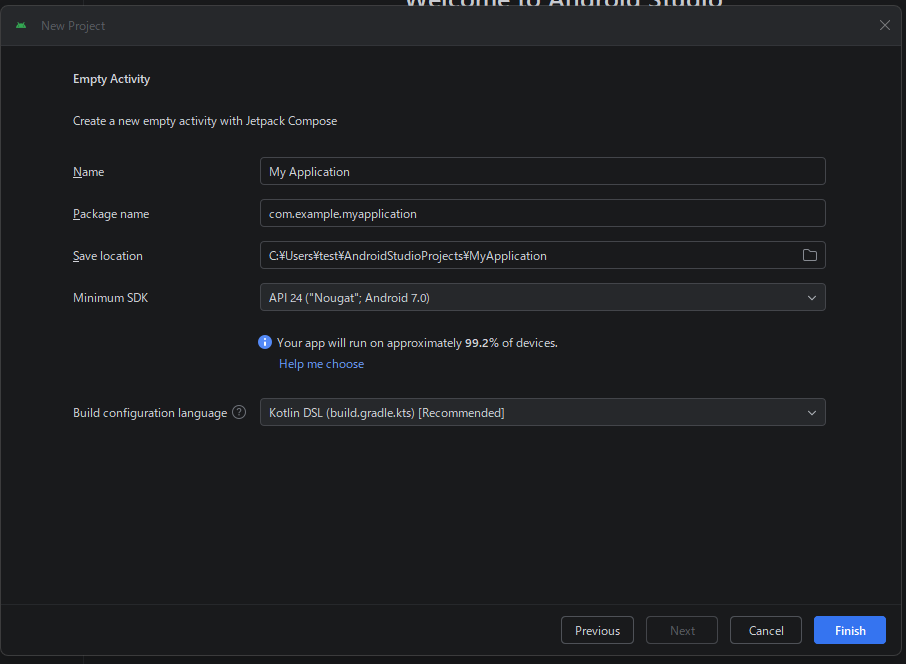
Type Information about the App Project.
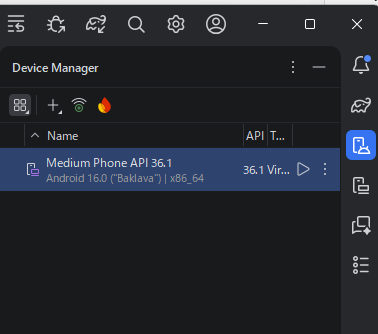
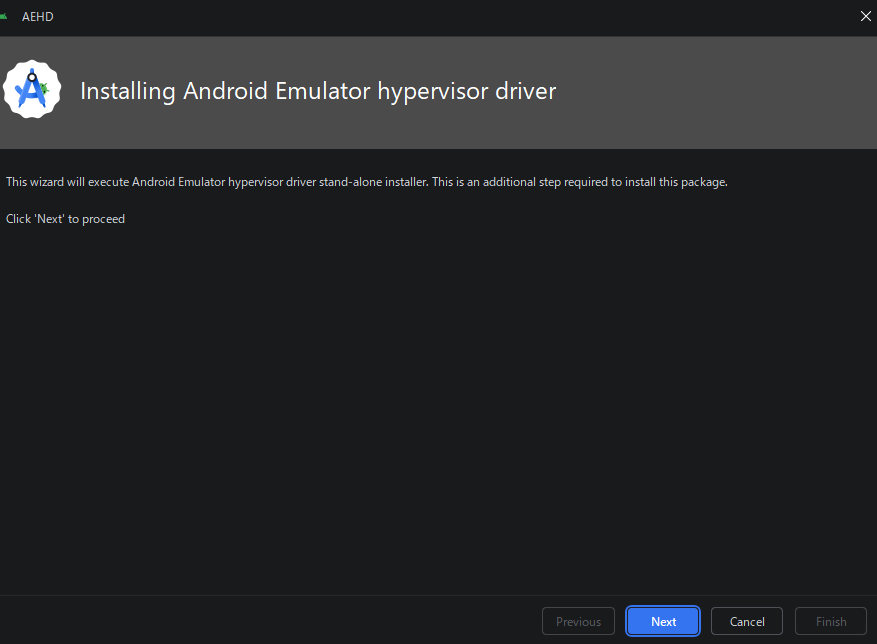
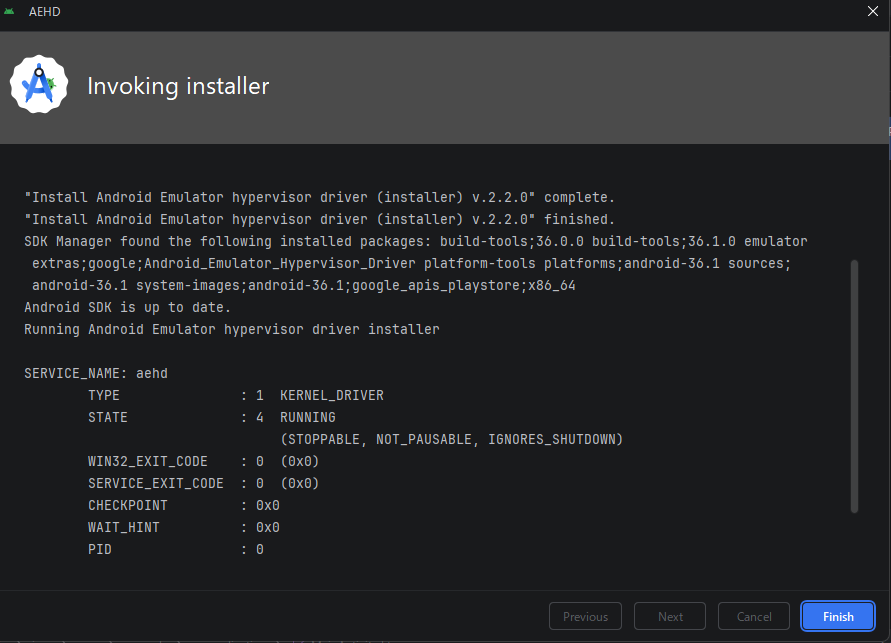
Run Virtual Smartphone
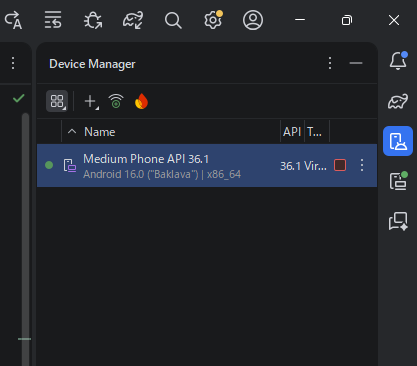
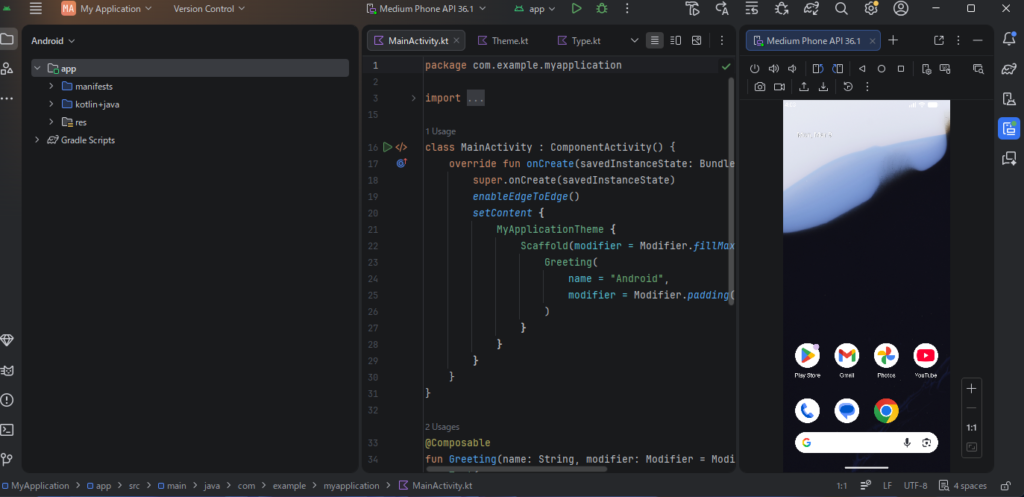
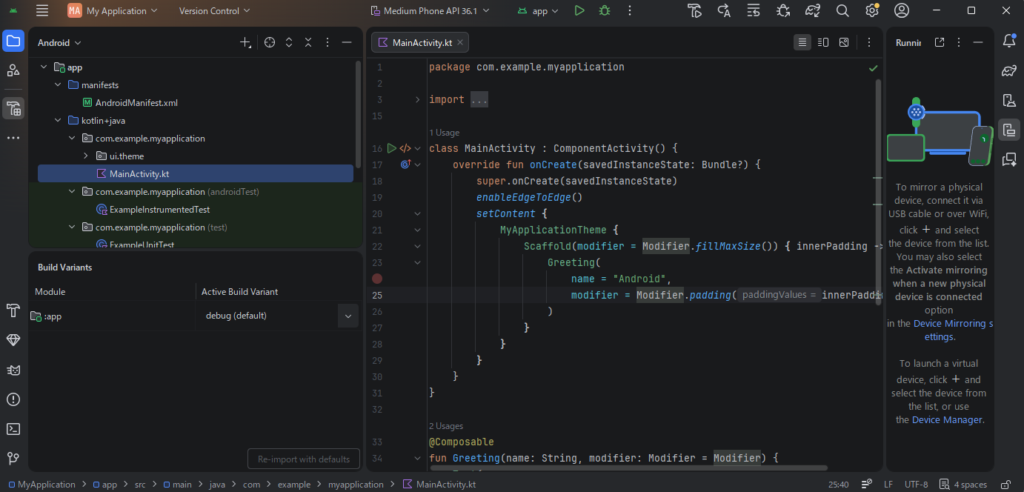
Edit Project Files on Project
Edit Codes to Create Android app.
Build developed App
Click ”Build >Generate App Bundles or APKs > Generate APKs”.
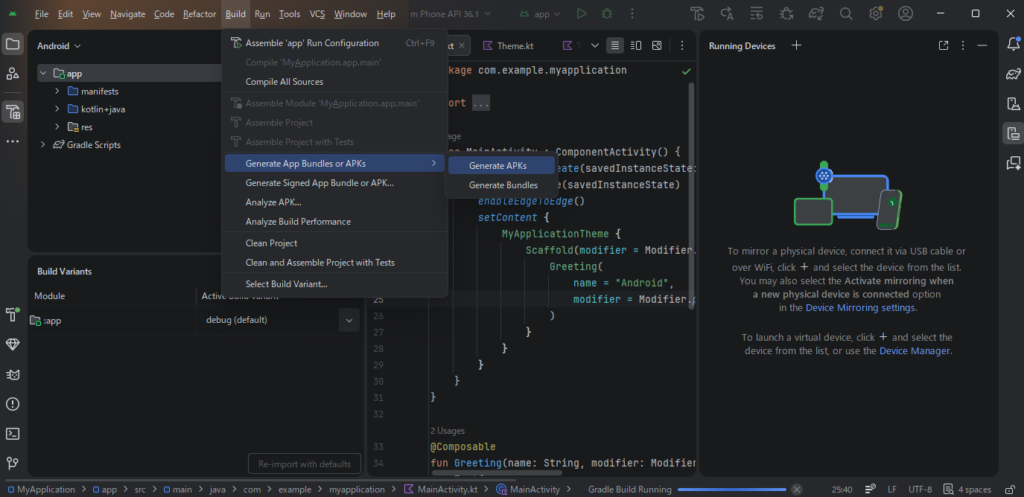
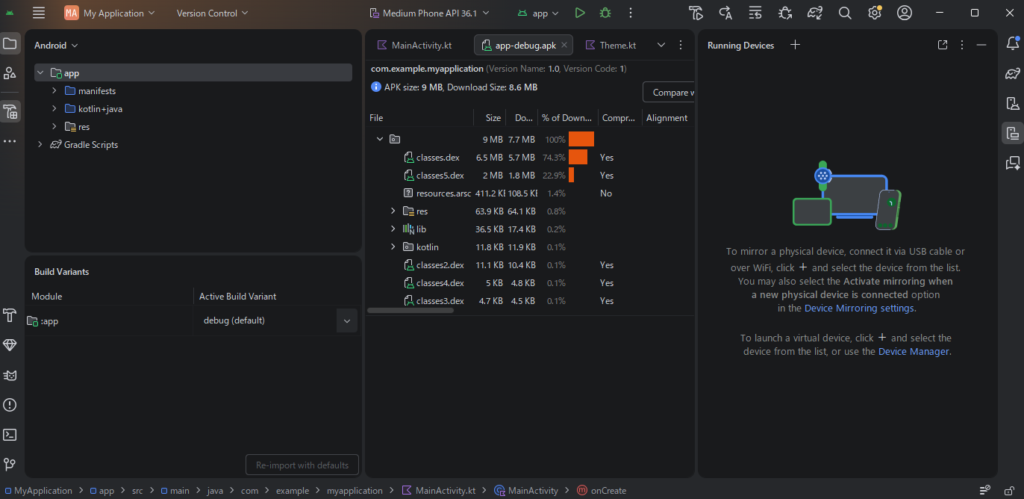
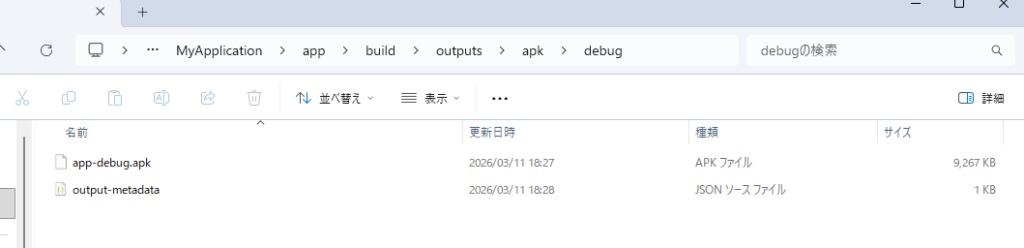
App has been built.
Publish Your Apps on Google Play

To Publish your apps on Google Play, Create Google Play Console Account.
https://developer.android.com/distribute/console?hl=en
Monetizing Your Android App with Ads
Display AdMob ads in your Android Studio app and start earning revenue from your application.