
In this article, we’ll actually build an Android app with Flutter while referring to the official Your first Flutter app codelab provided by Google.
The codelab guides you through creating a simple Flutter application step by step — from setting up your Flutter environment and creating a new project to building UI, handling interactions, and organizing your app’s code.
Here’s the link to the official tutorial we’ll follow:
https://codelabs.developers.google.com/codelabs/flutter-codelab-first?hl=en
Set up Your Flutter environment
First, follow the instructions in the official documentation to set up the Flutter environment on your computer.
Install Visual Studio Code And Flutter SDK
By checking the page at the following link, you can see that both Visual Studio Code and the Flutter SDK need to be installed:
https://codelabs.developers.google.com/codelabs/flutter-codelab-first?hl=en#1
Since Visual Studio Code is already installed on this computer, we will proceed with installing the Flutter SDK.
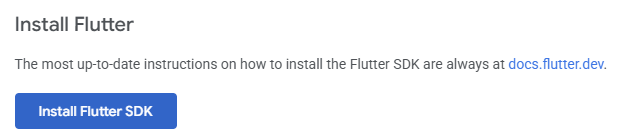
Clicking the Install Flutter SDK button takes you to the Flutter installation guide at the following link:
https://docs.flutter.dev/install
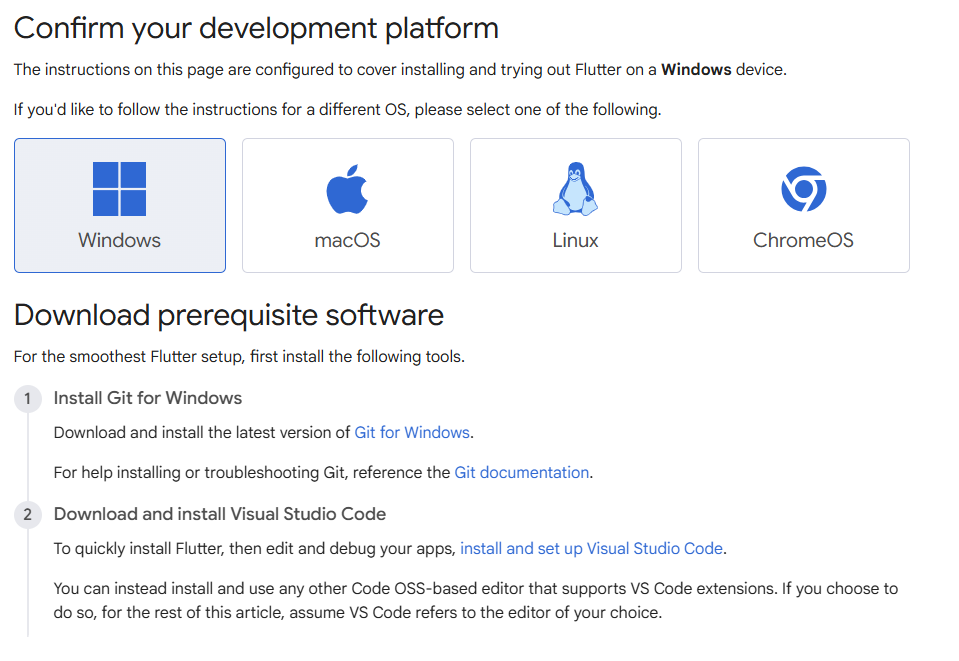
Since we are using Flutter in a Windows environment, select Windows on the following page and install the Flutter SDK:
https://docs.flutter.dev/install/quick
Install Visual Studio Code to use Flutter
Since Visual Studio Code is already installed on this environment, we can skip this step. However, if Visual Studio Code is not installed, you can install it from the following link:
https://code.visualstudio.com/docs/setup/setup-overview
Install Git for Windows to use Flutter
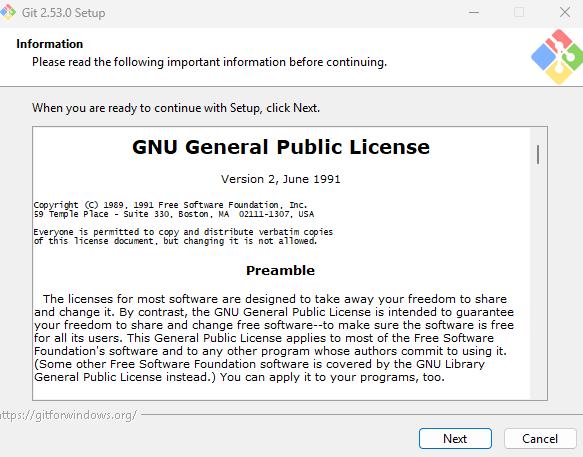
In addition to Visual Studio Code, you need to install Git. Since Git is not currently installed on our Windows PC, we will install the Windows version of Git from the following link:
https://git-scm.com/install/windows
Enable Flutter in VS Code
To enable Flutter in VS Code, perform the following steps:
- Install the Flutter extension in VS Code.
- Install the Flutter SDK via command in VS Code.
Add the Flutter extension to VS Code
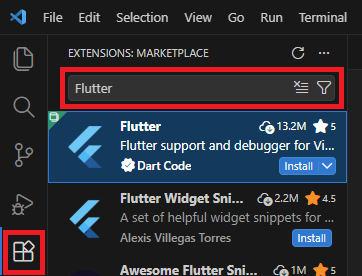
Once Visual Studio Code and Git are installed, install the Flutter extension in VS Code.
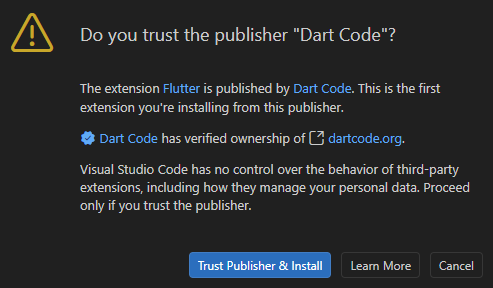
When the following screen appears, click Trust Publisher & Install.
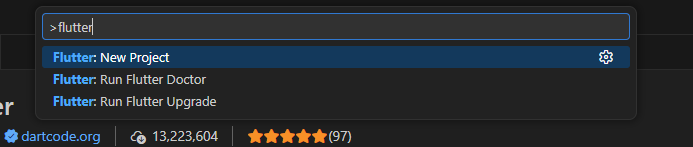
Install Flutter SDK with VS Code

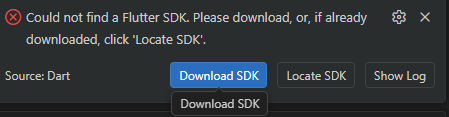

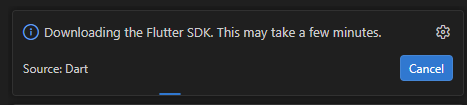
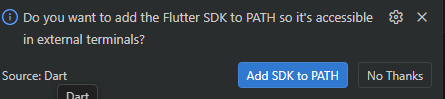

Restart VS Code.
Create Flutter Project
https://codelabs.developers.google.com/codelabs/flutter-codelab-first?hl=en#2
Develop Android Apps with Flutter
https://docs.flutter.dev/platform-integration/android/setup
Develop iOS Apps with Flutter
https://docs.flutter.dev/platform-integration/ios/setup