
When you build a WordPress site on AWS, any images you upload are stored on your EC2 instance. However, these images are saved on the instance’s EBS volume, which can quickly fill up your system directories.
By using WP Offload Media, you can offload images from WordPress to Amazon S3, reducing the amount of storage used on your EC2 instance’s EBS volume.
In this article, I’ve compiled a review based on my hands-on experience with the free version of WP Offload Media, WP Offload Media Lite.
Overview of Amazon S3
Amazon S3 is an AWS service that allows you to store various files and folders in the AWS cloud environment.
https://docs.aws.amazon.com/en_us/s3/?icmpid=docs_homepage_featuredsvcs
Amazon S3 stands for Amazon Simple Storage Service.
Overview of WP Offload Media
WP Offload Media is a WordPress plugin that allows you to store WordPress images on cloud storage services like AWS or Google Cloud.
Benefits of Offloading Images to AWS S3
Storing images on your EC2 instance can negatively impact the OS and system performance. By offloading images to S3, you reduce the storage used on EC2 and lighten the load on your server.
WP Offload Media Lite Restriction: Only New Uploads Go to S3
With WP Offload Media Lite, only new uploads can be sent to S3; existing post images cannot.
Upgrading to the paid version is required to offload images already in your posts to S3.
WP Offload Media Supports S3 and CDN (CloudFront)
By storing images on S3 and using CloudFront at the same time, you can create a smoother WordPress experience than relying solely on your EC2 instance.
Overview of CloudFront
CloudFront is AWS’s CDN technology. By storing and caching some of your data on the CDN, it speeds up page loading times.
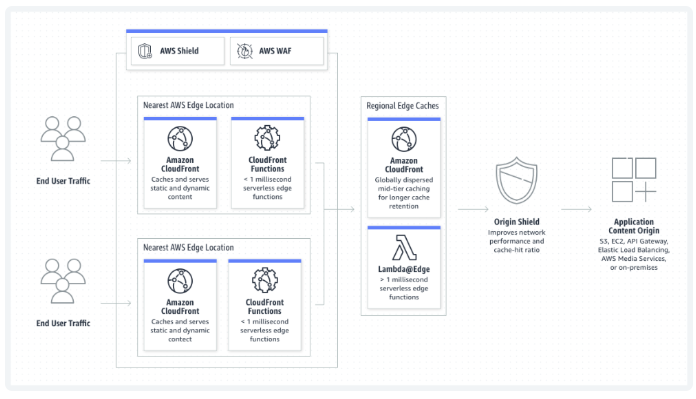
https://aws.amazon.com/what-is/cdn/#what-is-amazon-cloudfront–sua73s
Overview of CDN
CDN stands for Content Delivery Network. It caches your site’s data on servers called edge servers. When a user accesses your site, the cached data is delivered from the edge server closest to their location, which speeds up page loading and reduces the load on the server hosting WordPress.
https://aws.amazon.com/what-is/cdn
How to Use WP Offload Media Lite
To use WP Offload Media Lite, you first need to create an S3 bucket and folder in your AWS account.
Next, you need to assign an IAM user and role so that WordPress can store images in AWS S3. For detailed instructions, refer to the WP Offload Media documentation.
https://deliciousbrains.com/wp-offload-media/docs/getting-started
To enable WordPress to use AWS S3, add the necessary settings to your wp-config.php file.
Conclusion
By moving WordPress images to cloud storage like Amazon S3, you can reduce the storage usage and load on your server. To optimize your site’s performance as much as possible, it’s a good idea to offload images to cloud storage.
Related posts:
 How to use YoastSEO
 JetPack Summary
 How to use Elementor
 Install Google Site Kit into WordPress
 Overview of Kinsta: Optimized WordPress Hosting on Google Cloud
 Astra Theme Free Version Review: Our Honest Experience Without Paying
 How to migrate WordPress Site to AWS Lightsail
 Summary of WordPress and How to use it